Translated with AI from the Russian original.
Today's program: • Overview of the new USG FLEX H series; • Comparison with ATP and USG FLEX series; • New OS and its features; • Configuration examples. Today's event by Zyxel is dedicated to the new USG FLEX H series of firewalls.
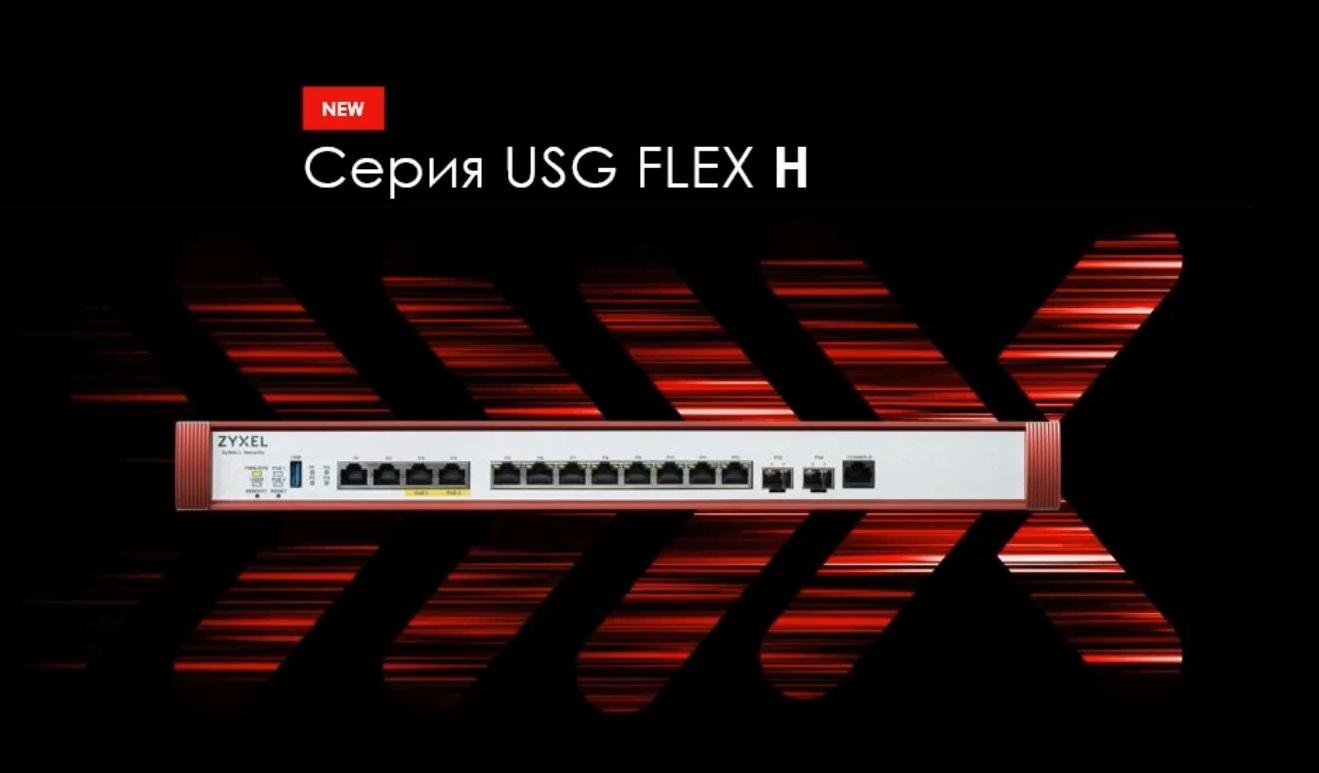
In fact, these devices have not yet started to be actively sold because these firewalls have a new operating system and functionality that is present in the current lines, but not all of it has been implemented.
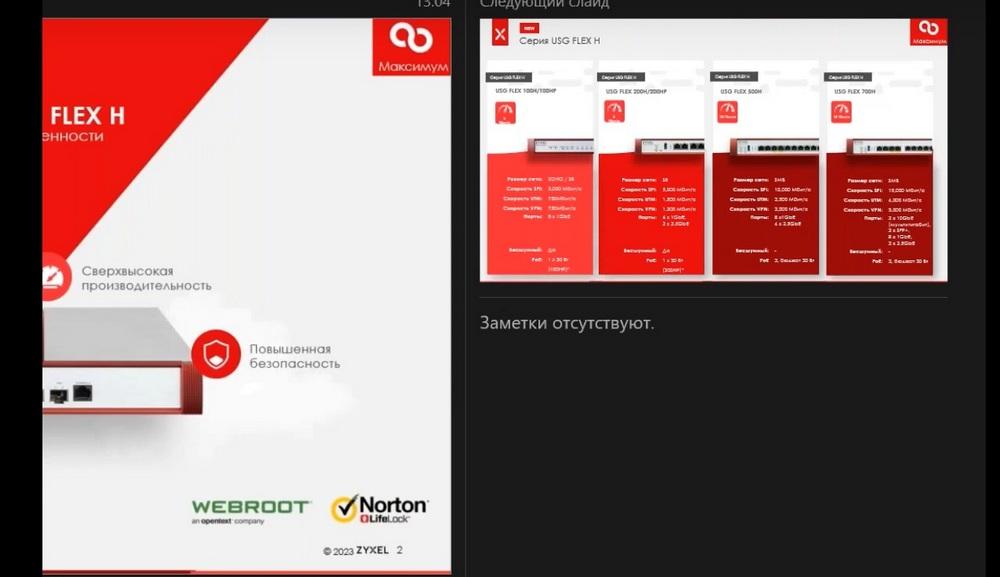
The features of the new USG FLEX H series are a new OS and port flexibility for all models, all ports are configurable, any port can be configured as LAN or WAN, some models, starting with the 200 series, support Gbit. Some models support PoE.
Performance has been increased by approximately 3 times compared to similar models, USG FLEX is currently only monitoring without management, we have not yet decided "which way to go", either to make it like in the USG FLEX series, i.e. two modes of operation: either a full configuration mode with a stripped-down web interface, or a monitoring mode where the web interface remains fully functional.
Next is the new VPN client - "two in one", because it now supports not only IPsec, but also SSL-VPN.
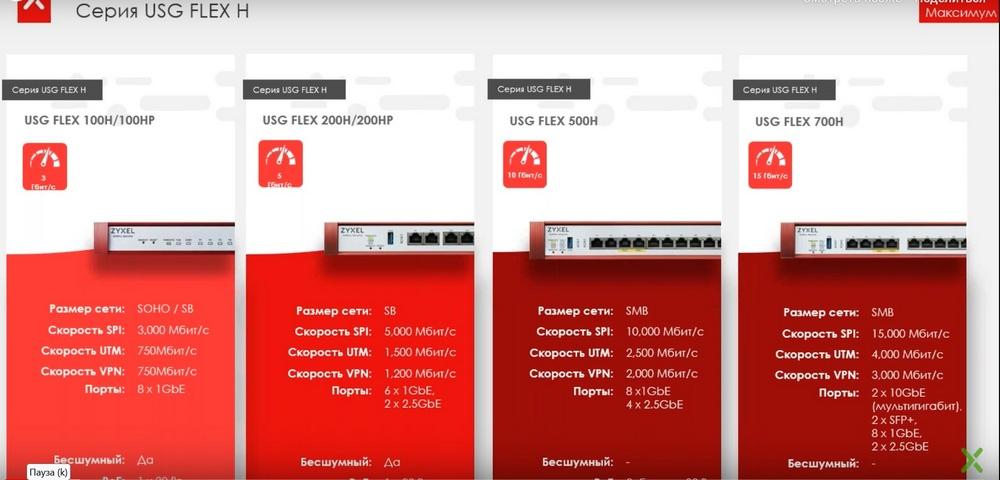
The slide shows 4 models of firewalls, there are 6 in total, there are also USG FLEX 100H/100HP and USG FLEX 200H/200HP models, with PoE support. The five hundredth and seven hundredth models already support PoE. On the slide you can see the performance and the number of ports of these devices. Starting with the 200th model, there are two multi-gigabit ports at 2.5 Gbit, in the 500th model - 4 such ports, and what is in the 700th model, you can see on the slide.
The next slide shows the top model.
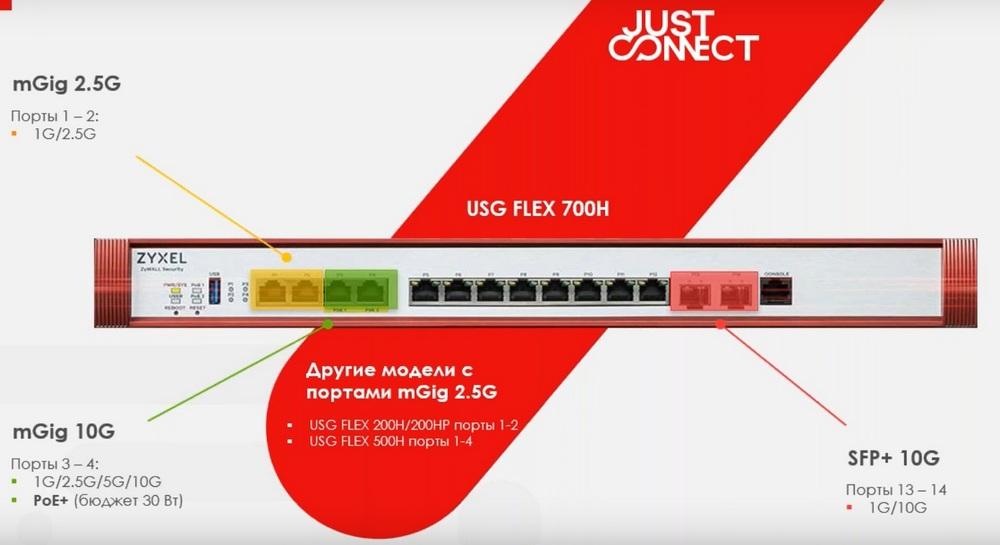
The first two ports are 2.5 Gbit, the 3rd and 4th ports are 10 Gbit with PoE support, then there are gigabit ports, and then two more ports on SFP+ 10 G.
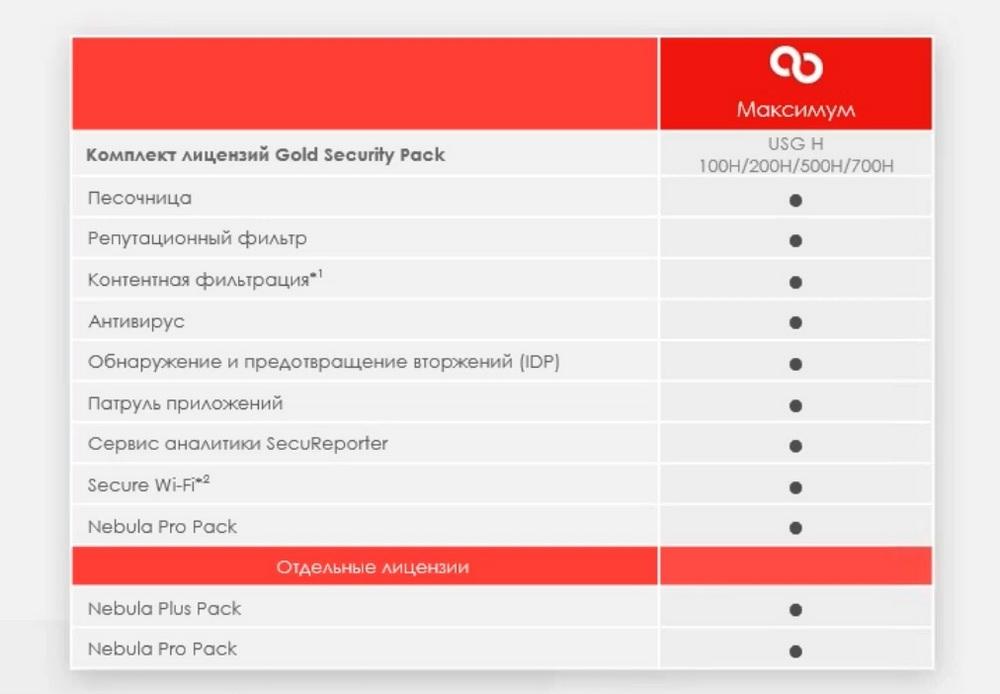
For this series, there is a Gold Security Pack license and a separate license for Nebula Pro Pack. The Gold Security Pack also includes Nebula Pro Pack and all other UTM services: sandbox, reputation filter, content filtering, antivirus, etc. Secure Wi-Fi is not yet included, as there is no support for it yet, it will appear later. And content filtering currently does not support operation in Russia and Belarus.
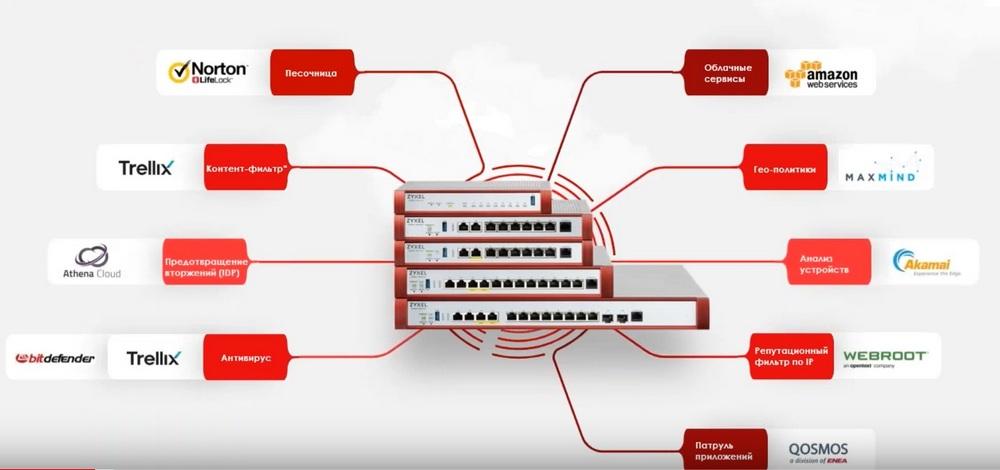
The slide above shows the services provided by UTM.
The main distinguishing feature is the new operating system – uOS. It is designed to improve security, minimize system response time, instantly apply changes, and optimize configuration management thanks to a new intuitive design.

The extended system panel has navigation, the menu structure hierarchy is available at the top, you can select different levels there, there is support for the "favorites" function, you can add the necessary menu sections that are used more often, there is a menu search, object search, keyword search. The DPDK architecture allows achieving maximum performance through FastPath technology, switching to other hardware platforms has become easier compared to the previous version. The new graphical interface provides a better overview for monitoring and statistics.
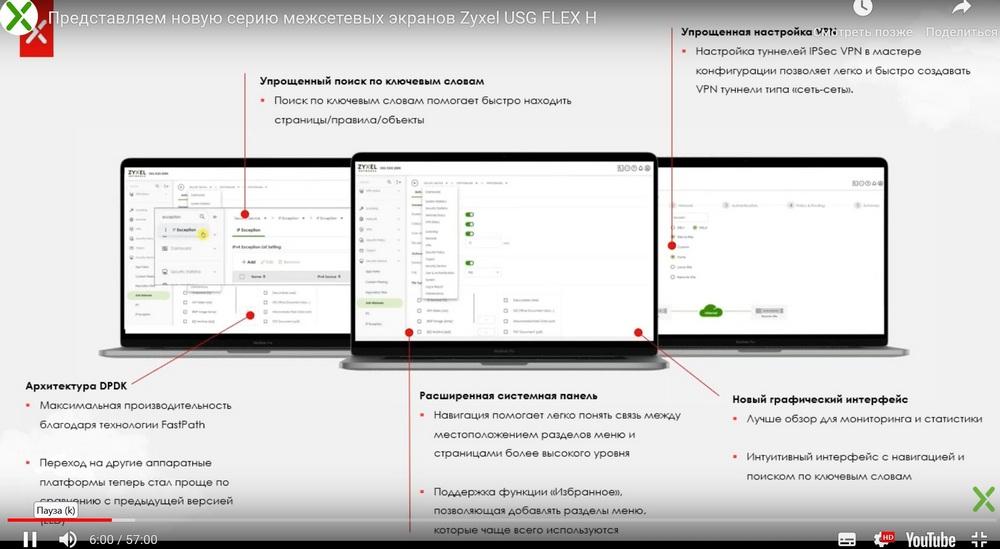
The DPDK architecture can later be used on other hardware platforms.
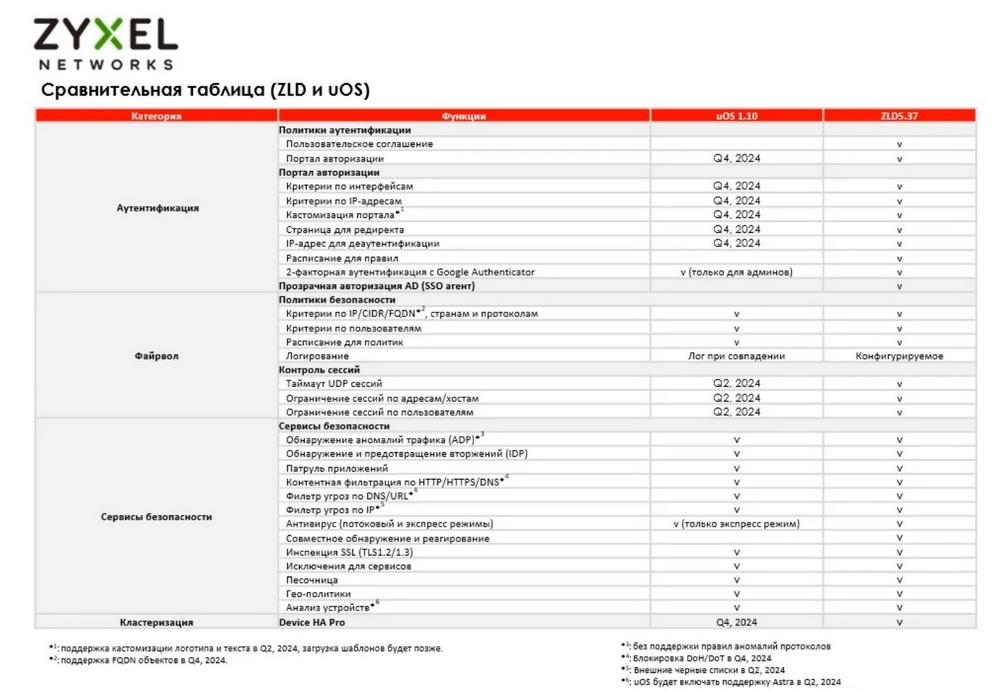
Next, let's compare the current uOS operating system with ZLD. This comparison can be seen in the following table. In short, the access point controller, automatic change of their power, as well as the detection of other access points and port aggregation, all this will appear only at the end of 2024.
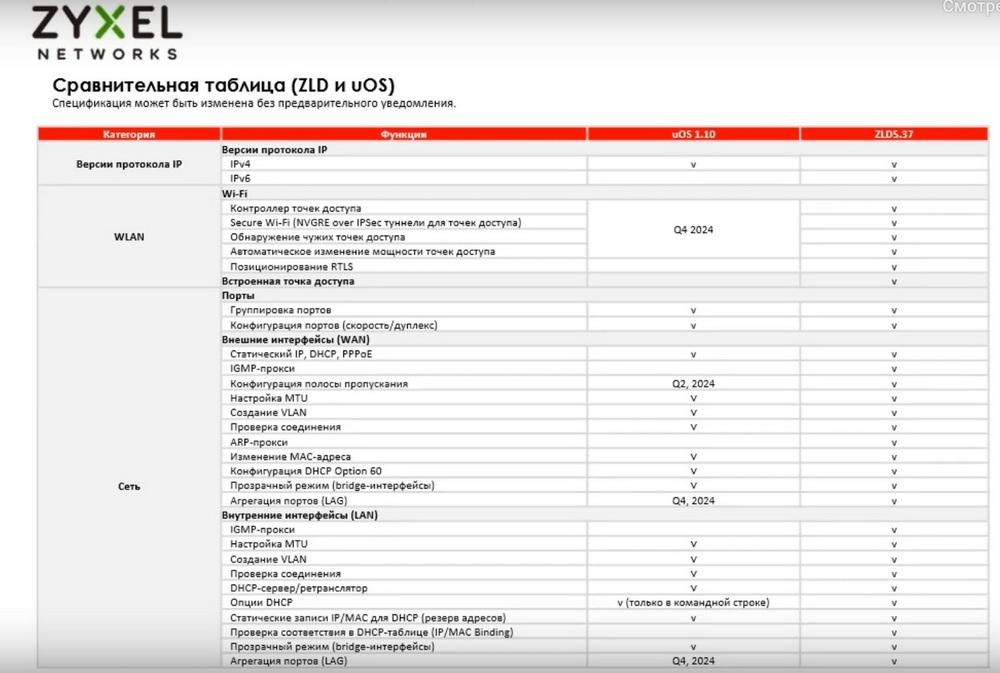
And the configuration of the bandwidth of external interfaces will be available at the end of the second quarter of 2024.
The new operating system uOS (USG Operating System) is a DPDK architecture with support for FastPath technology (or kernel bypass). Here, all models are multi-core and part of the processor cores will be reserved only for traffic processing, and the remaining cores for other purposes.
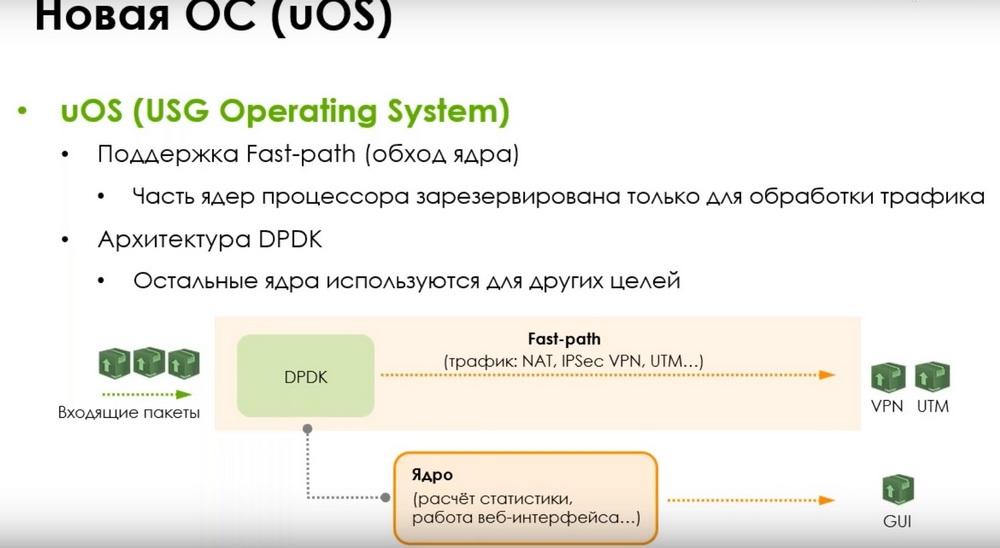
When incoming packets arrive, if the traffic goes past the kernel and the packet processing goes past the kernel, this increases performance, and the kernel at this time is calculating statistics, initially opening sessions, and working with the web interface.
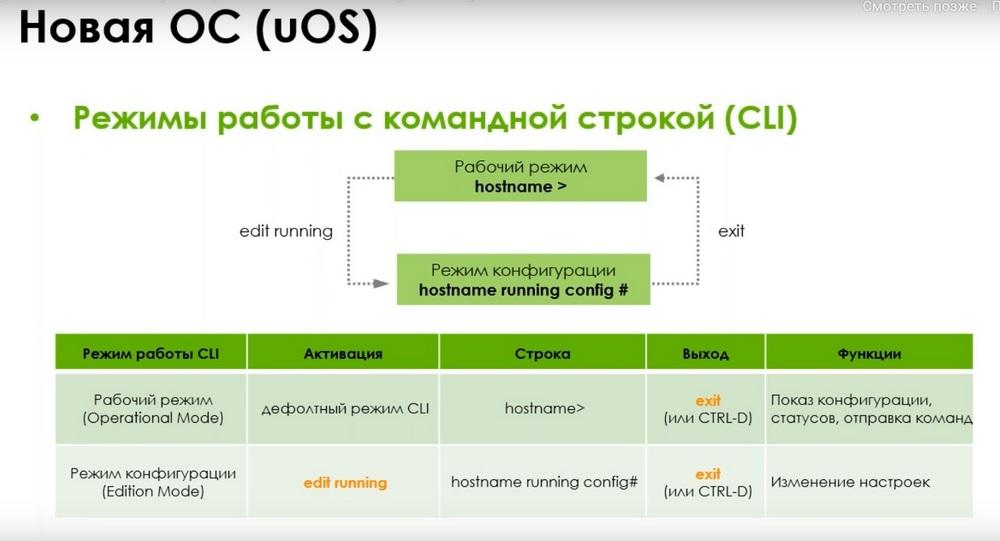
The command line mode is different and to enter the configuration mode (hostname running соnfig), the edit running command is required, which is necessary to change the settings. To exit this state, you can enter the exit command or press the CTRL-D keys.
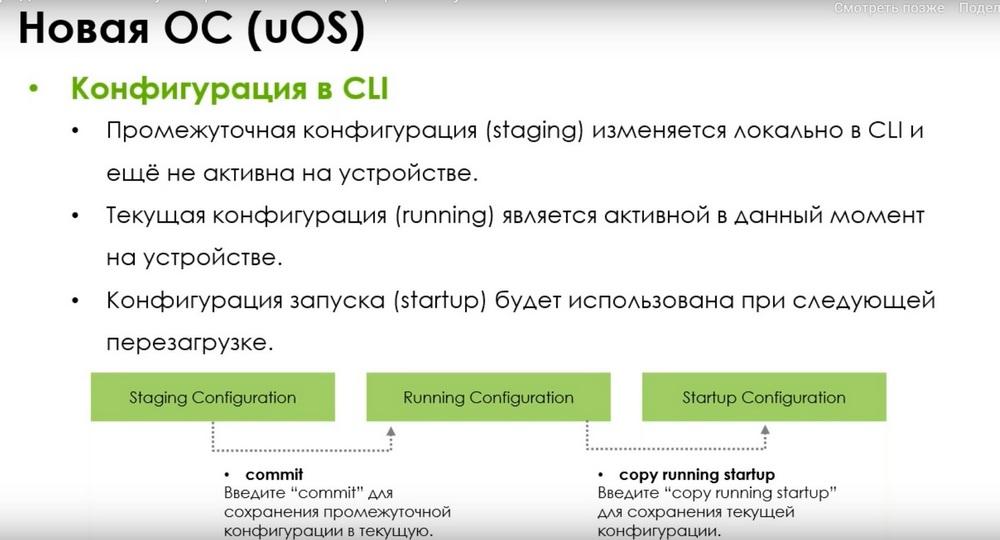
The configuration in the CLI also differs, there is also an intermediate configuration (staging) that is changed locally in the CLI and is not yet active on the device. The current configuration (running) is currently active on the device. The startup configuration will be used at the next reboot.
Enter the commit command to save the intermediate configuration to the current one, and enter the copy running startup command to save the current configuration.
This cannot be achieved through the web interface.
Indicators and buttons
A REBOOT button has appeared, which can be used to reboot the device. The RESET button is for resetting the configuration.
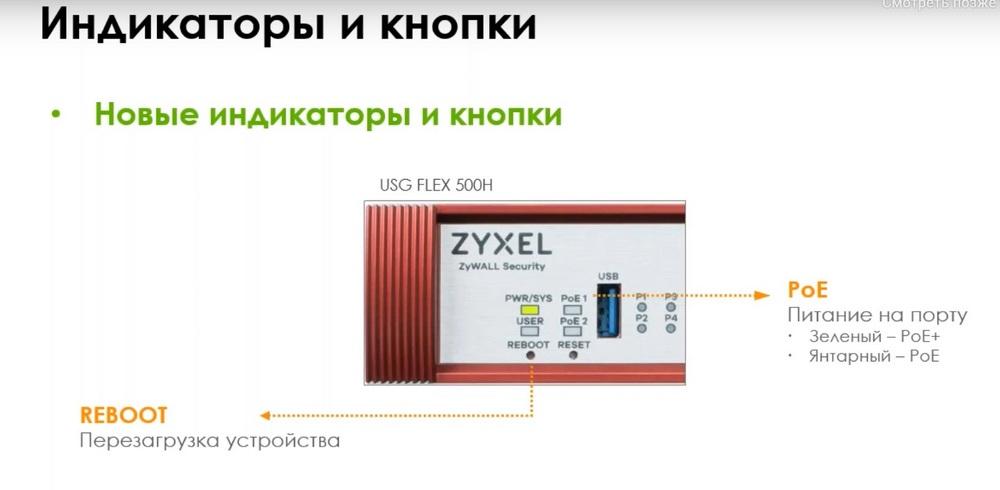
There are PoE indicators for models that have such support. There is also a USER indicator, which can be used for your own events, this indicator is pre-configured and can be activated to light up green when the administrator logs in, light up amber, for example, if one of the users is blocked, if he entered the passwords incorrectly, or flashes green if the license has expired or a new firmware is available.
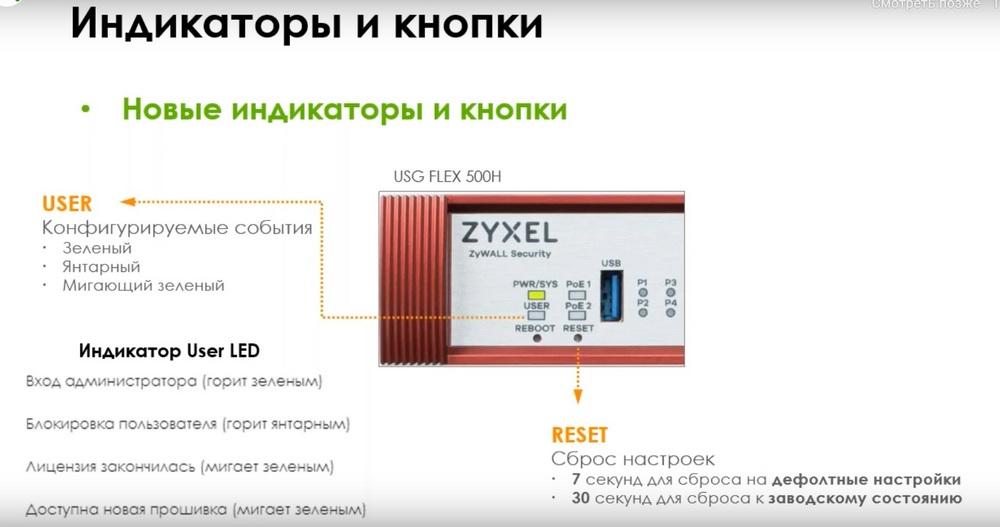
Button for resetting settings, if you press and hold it for 7 seconds, then the gateway will reset to the default settings, and if you hold it for 30 seconds, then the settings will go to the factory state.
Working with Nebula
The system will work with Nebula, and at the moment this will be an analogue of the monitoring mode for the current lines, so at the moment the functions are visible on the slide.
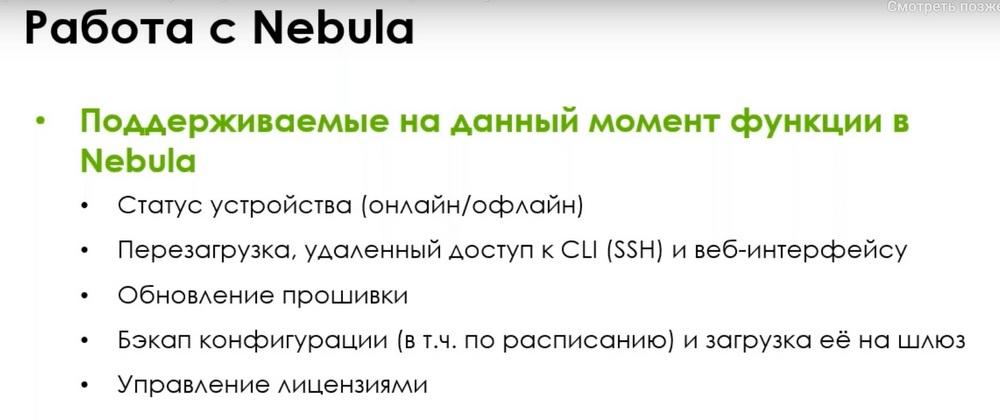
This is the device status (online/offline), reboot, remote access to CLI (SSH) and remote access to the command line and web interface, firmware update, configuration backup (including on a schedule) and uploading it to the gateway, license management. Even if you have blocked ports 443, 70, 23 for security reasons, you will still be able to access Nebula.
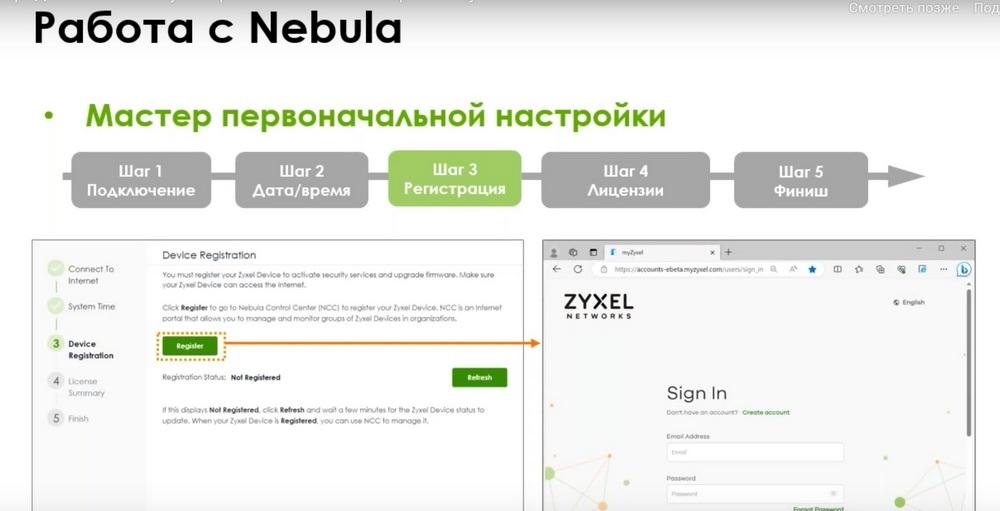
Firmware update, configuration backup, including on a schedule and application on the gateway, and license management. That is, in the current line, they are managed mainly now through the myZyxel portal. There you register the license. Although this can also be done through Nebula. That is, Nebula will soon completely replace the myZyxel portal. Both adding devices, registering a license, and linking a license to a device, all this will be done there. And, if you go through the initial setup wizard on the gateway, then when you click on the registration button, you will be directed to the Nebula portal. To log in to Nebula, you can use the same account as on the myZyxel portal. After that, you specify or select one of the organizations and sites. And you add the gateway to this site.
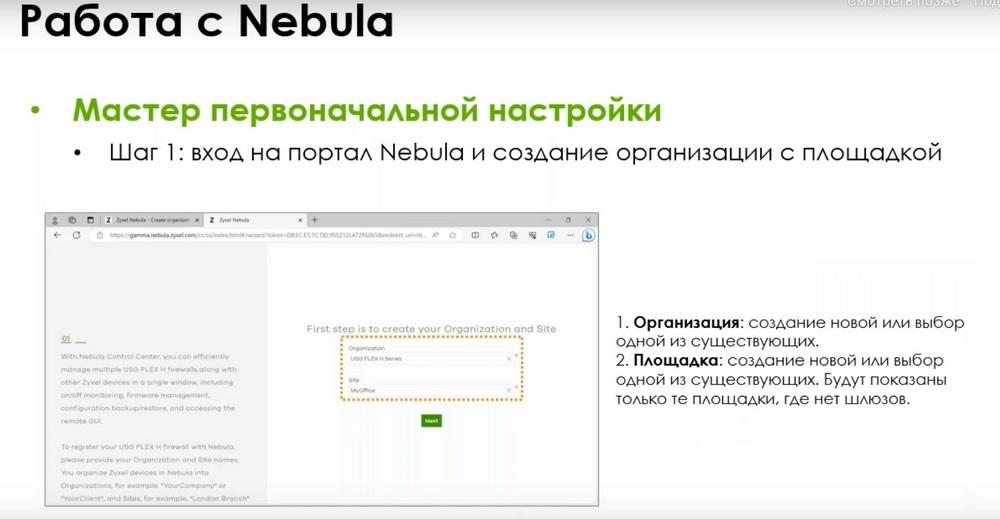
If device registration is skipped, then when you enter the web interface, the device status will be displayed as unregistered. And a window with a QR code will appear, which can be used to register Nebula using a mobile application. If you do not have a mobile application installed yet, then the QR code will redirect you to the application store.
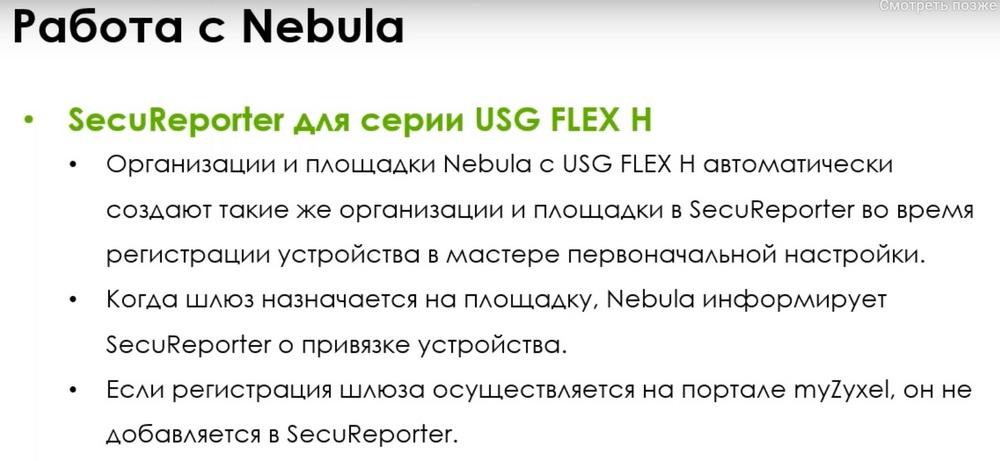
The organization of the Nebula site with USG FLEX H will also automatically create the same organizations and sites in SecuReporter during device registration. That is, when the gateway is assigned to a site, Nebula immediately informs SecuReporter. Therefore, you will not need to add it separately to SecuReporter, it will be there immediately. If you register the gateway on the myZyxel portal, and not Nebula, then SecuReporter will not be added there automatically.
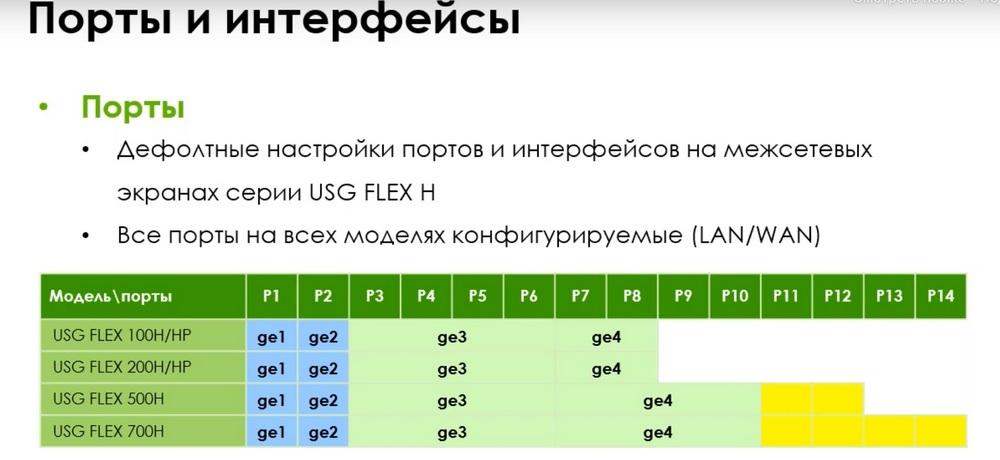
All ports on all models are configurable. You can assign both LAN and WAN. But there are still default settings. The first two ports are usually WAN, the external interface. Next, you see, there from the third to the eighth or tenth ports - LAN port. The rest are optional.
I repeat that any port is configurable, and you can configure both the external and internal interface. Ports can also be grouped. But at the same time, some models have individual ports that cannot be added to groups. These individual ports are not connected to the chipset and switch, they are connected directly to the processor. Therefore, they cannot be added to groups. But at the same time, the traffic processing speed increases.
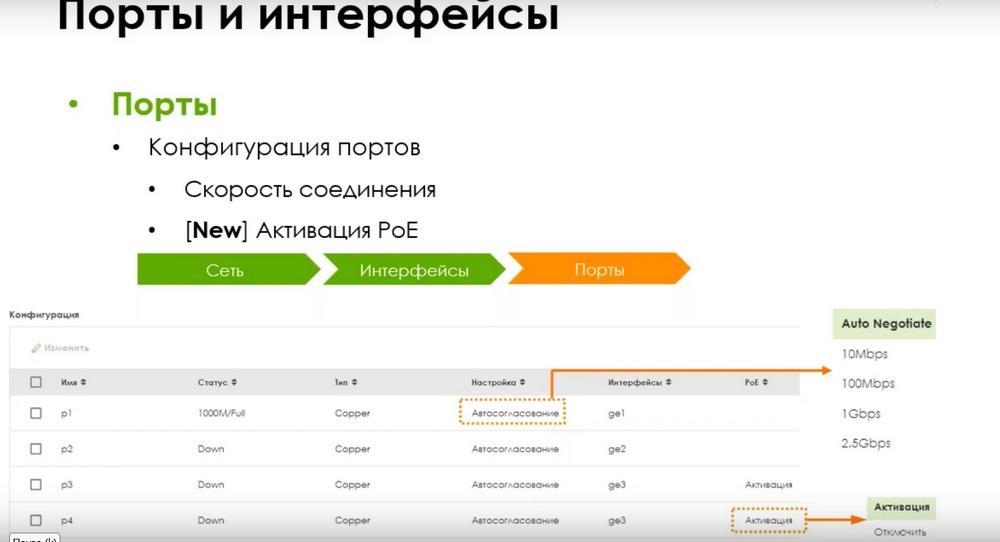
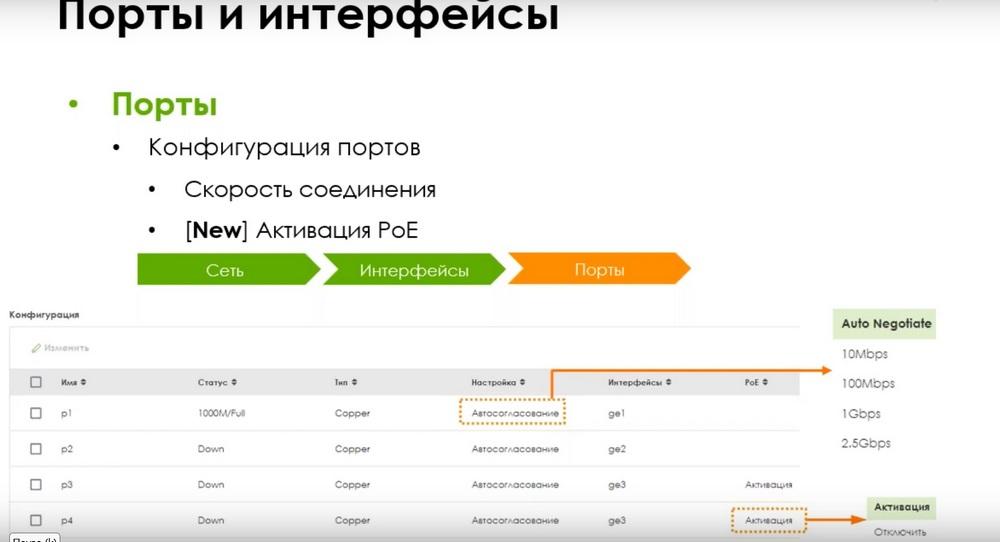
Regarding port configuration. Connection speed is available in current lines. But since there are PoE models, it will be possible to turn PoE on and off on ports with support. At the same time, the total budget is 30 W for all models.
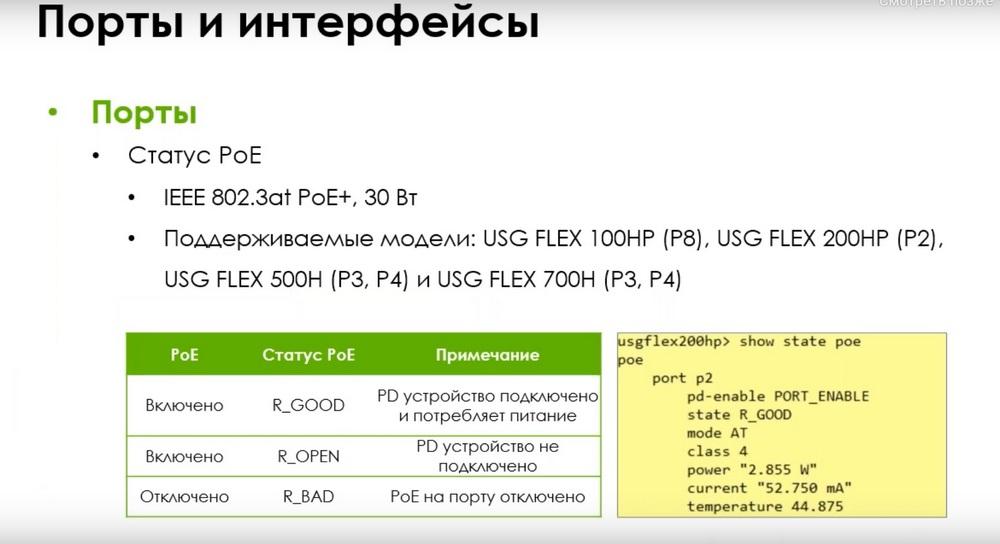
That is, this is the maximum budget and, depending on the model, there is one port or two ports with PoE. You can view the PoE status via CLI. As you can see, there are 3 PoE statuses here: R_GOOD, R_OPEN and R_BAD. Accordingly, R_GOOD is when the PoE device is powered, connected and consuming power. R_OPEN is when it is not connected, and R_BAD is when PoE itself is disabled on board.
Interfaces in the current lines also have internal, external and general ones. But general ones can only be configured via CLI.
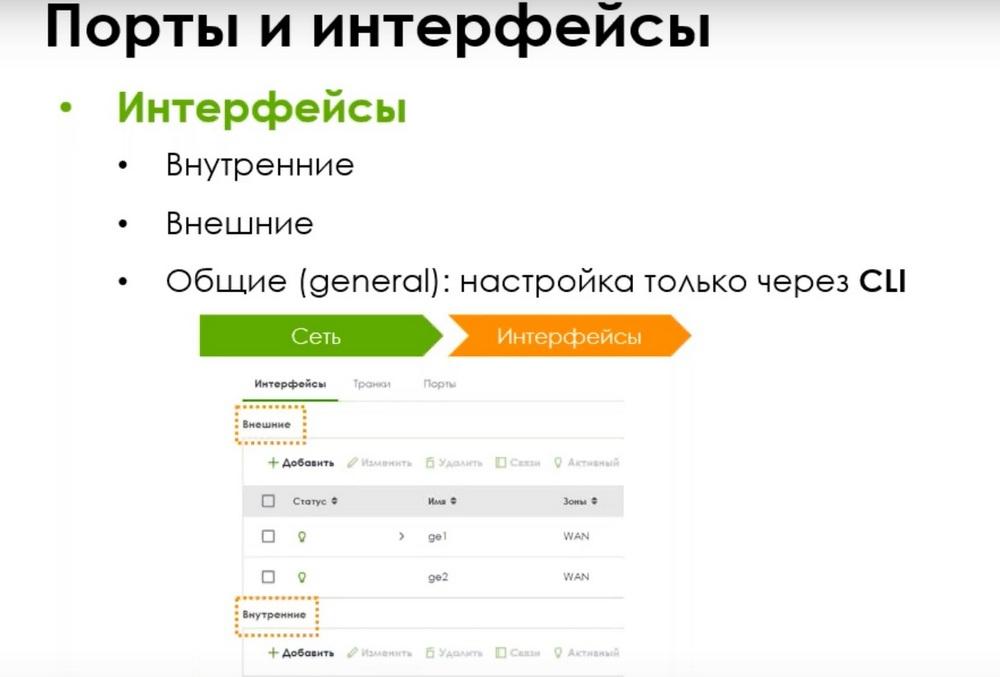
That is, in the web interface you will not see a section with general interfaces until you create at least one general General interface through the CLI. And after that they will appear in the interface. And initially there are external and internal interfaces. The setting will not differ in any way, except for the case when your provider uses PPPoE, then it will be configured immediately on the external interface.
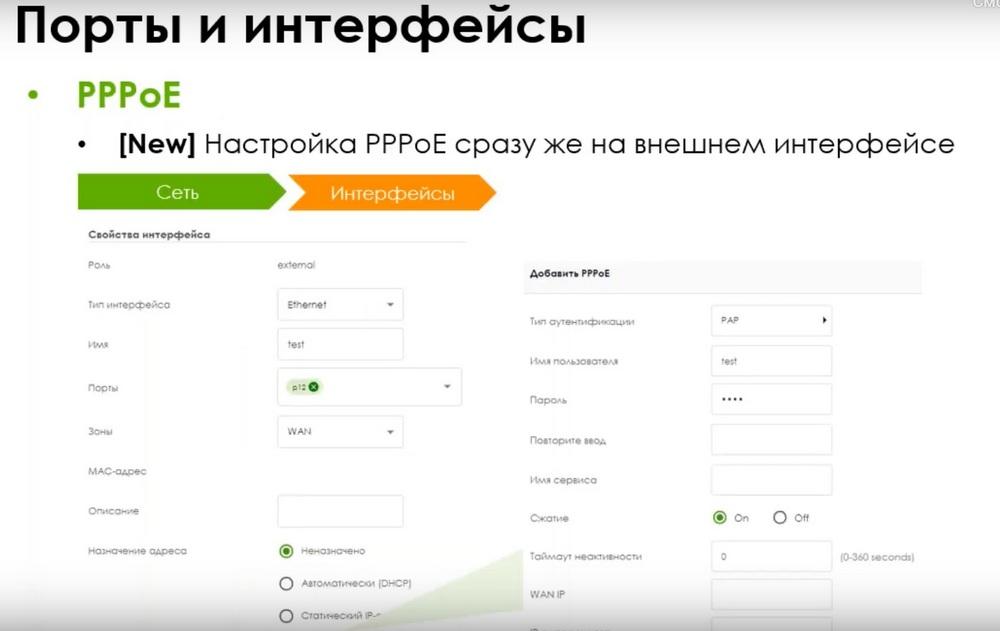
I.e. you don't need to create another interface as in the current lines, but when creating an interface, you can immediately specify that it uses PoE.
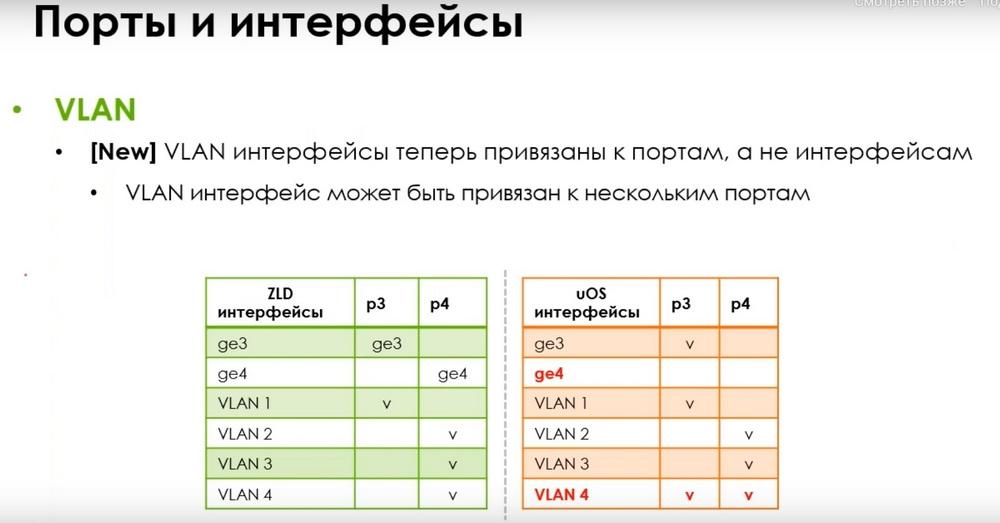
VLAN interfaces. Their configuration also differs from the current interfaces. If now they are tied to interfaces, now VLAN interfaces are tied to ports. And a VLAN interface can be tied to multiple ports at once, regardless of the current interfaces. I.e. VLAN interfaces are now not connected in any way with logical interfaces ge3, ge4, etc.
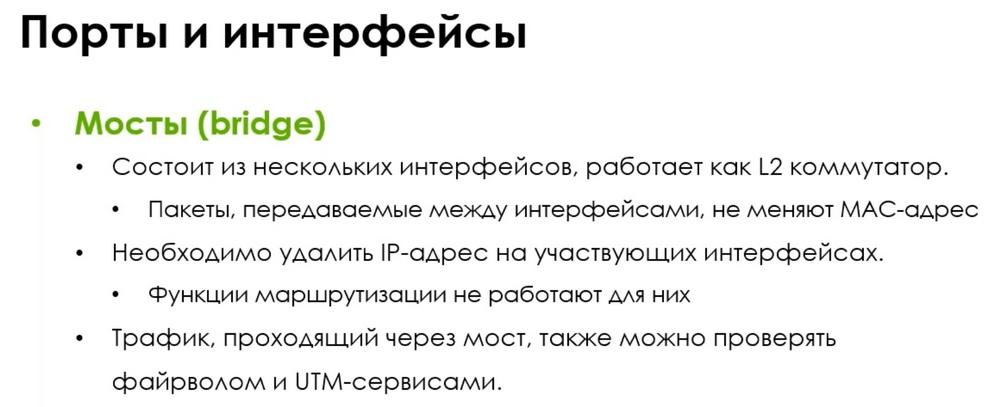
Bridges are also available. Let me remind you that they consist of several interfaces and work as L2 switches. Packets transmitted between interfaces do not change the MAC address. At the same time, on the interface that you add to the bridge, you need to remove the IP address, i.e. you can simply check the "without IP address assignment" box. And the routing function will not work for them. Traffic passing through the bridge is also checked by the firewall and UTM services, as in the current lines.
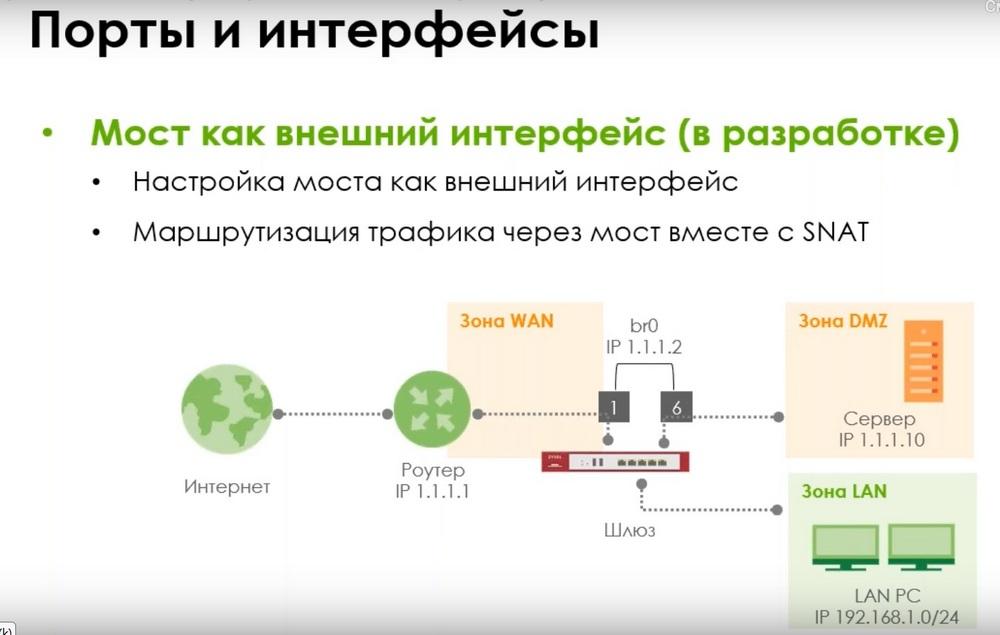
Bridge as an external interface cannot be used yet (it is under development). It can only be used for forwarding traffic for now. And as an external interface together with SNAT you cannot use it yet. This development will appear later in the following firmware versions. Let me remind you to which zones traffic through the bridge belongs. It refers to both the interface zones and the bridge zone. And if, for example, the WAN interface and the DMZ interface in the corresponding zones are added to the Bridge zone, then the policies like WAN to DMZ, Bridge to Bridge, WAN to Bridge, Bridge to DMZ will fit. I.e. any ethics from to these directions will fit. And accordingly, LAN to DMZ, LAN to Bridge will also fit. You can use either one or the other direction in order to create rules for working with traffic.
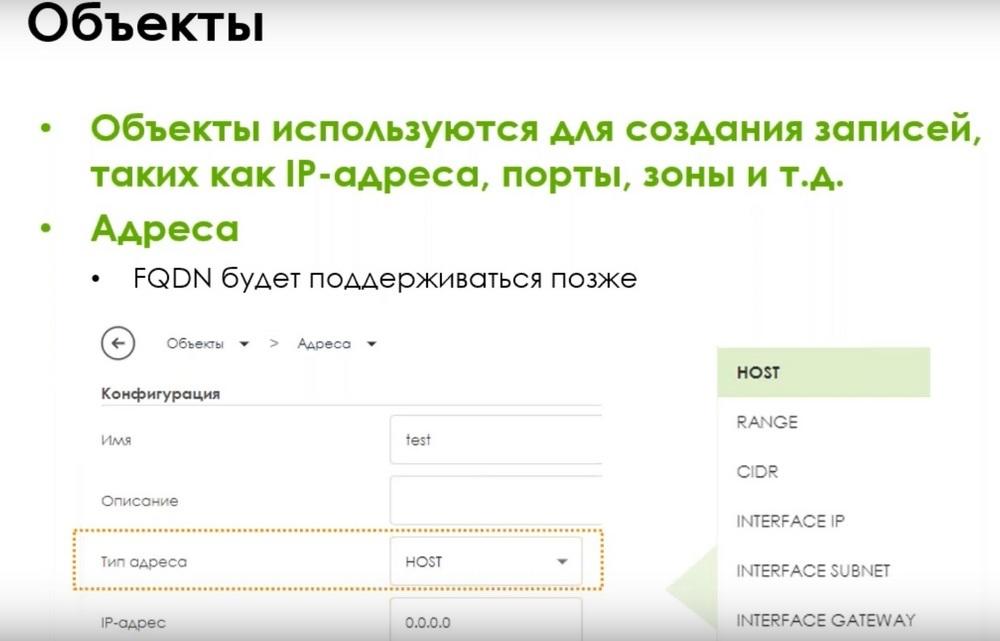
Let's move on to the objects. There are no special differences here in how they were and are in the current lines: IP addresses, ports, zones, etc. The only thing is that FQDN records are not supported yet. This will appear later. And now, when creating any rules, routing policies, security policies, you can easily operate on objects right away. You don't need to jump between different menus, objects, and policies. Now when creating any policies, as soon as you click on the source, you immediately have a choice of addresses, objects, and you can immediately add either a new object or a new letter. And if you need to change the current object. Now you can do this immediately, without going to the object section.