Translated with AI from the Russian original.
Event of the OCS Soft team's special project - PROdemo: Software Solutions Laboratory. At the online meeting, we talk about 3D graphics based on the "Astra Group" and Loudplay product stack.
At the event, Oleg Vasiliev, technical expert at OCS, will talk about:
- architecture overview;
- Brest 3.3.1 and 3D solution — what to pay attention to;
- Termidesk 5.0 — what is needed for 3D VDI;
- Loudplay — important points during setup.
Alexander Kalinin began his presentation with a story about who we are, what we do, and what we have. At OCS, his department deals with information security products. On the website, you can see what demonstration stands we have, divided into different categories. We do all this based on our demo data center.
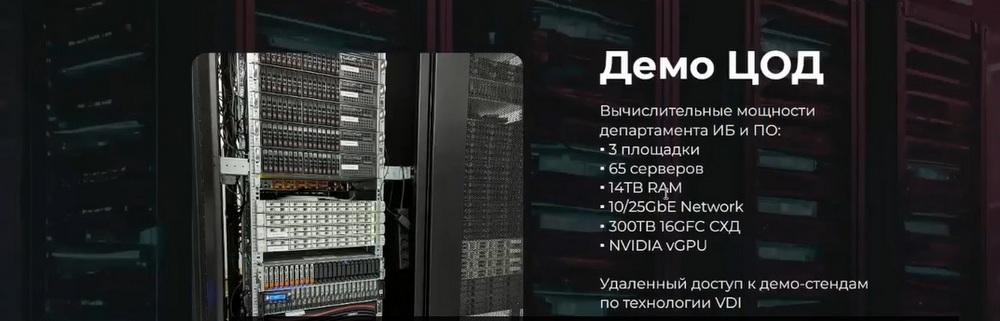
We have three sites, 65 servers, the lion's share of which we purchased in the last two years, that is, these are quite new platforms. A decent amount of RAM, high-speed networks, storage systems. And we give access to our demo resources through VDI, or we can publish some resources on the network so that you can take them and log in without additional options. Based on everything we do and our expertise, we provide a range of services for partners.
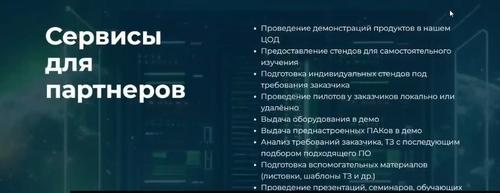
We conduct demonstrations. We provide demo stands for independent study. We prepare stands for customers. We conduct pilot projects locally or remotely. It is possible to issue a server in demo mode, it is possible to issue pre-configured PAKs in demo mode. The difference here is that we either give away bare metal, the partner-customer independently configures everything, or we prepare something, install, pre-install and give it away in this form. And a number of such standard pre-sale activities, such as requirements analysis, analysis of technical specifications with subsequent selection of suitable software, preparation of various supporting materials, conducting presentations, seminars, training courses, webinars. And of course, we share our experience and advice on the operation of products.
Speaking of the Astra Group, we have a demo stand h2.1, today we will see another PM Manager, but also from the point of view of infrastructure software, I would say that we have the largest portfolio for virtualization.
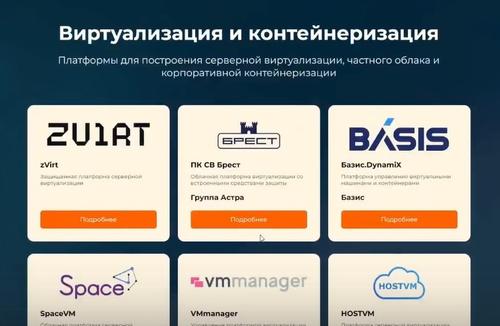
This is zVirt, BASIS, Space VM, HostVM, ROSA, Basalt, Cyber Infrastructure, Container, Nova. Just from the point of view of VDI: Termidesk, Termit, Basis Workplace.
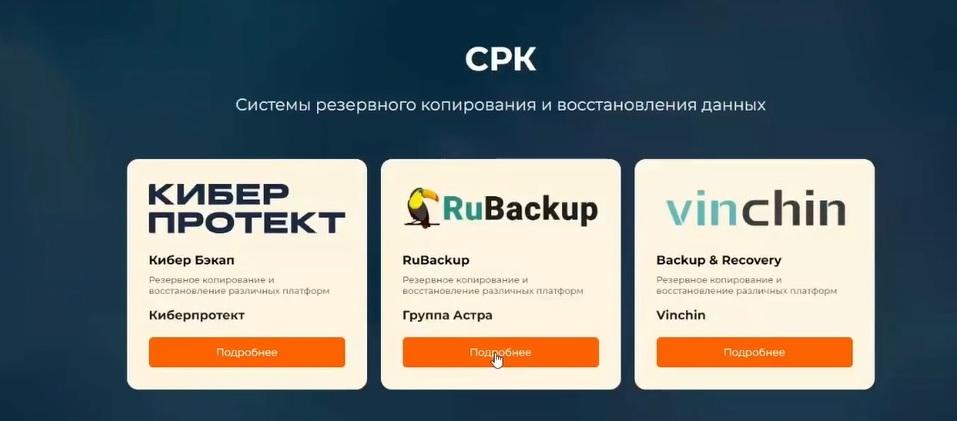
My favorite topic is SRK: RuBackup, Cyber Backup and colleagues from China - vinchin, various system software, here Kaspersky got in a little, it would seem that it can be sent to the VB, but nevertheless, the ASTRA group, the directory management service, the LD Pro domain management. Various interesting stories related to the migration of virtual machines from one platform to another, management of the physical multi-vendor infrastructure of the ASTRA group, load balancing.
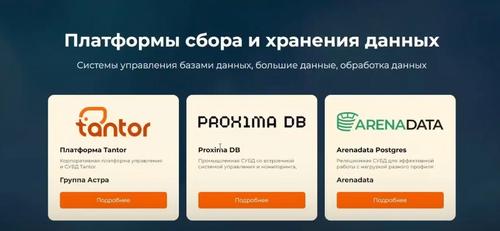
From the point of view of DBMS - these are various variations of tantor from Astra, Proxima DB, ARENADATA. Various application software related, for example, to corporate mail, mobile environment, in fact, from the point of view of a mobile application, working with mail or documents, a remote access organization server, and so on. And here is such, I would say, a significant piece on information security. Here, in many ways, Kaspersky products, "Positive" products. There are also a number of other vendors, for example, INDID.
But in fact, you can always go here, click the "More" button and see various management interfaces, what our demo stands look like, scenarios that you can also see. Stand composition, there is a "Book" button here. By filling out the application, your wish to book this stand will fly to our "telegram". We will definitely contact you and give you access to it as soon as possible.
We have different demo stands. There are virtualized ones, there are physical ones. The term for issuing this demo stand directly depends on the mode in which it is deployed. With virtual platforms, of course, it's faster.
Then the floor was taken by Oleg Vasiliev, technical expert at OCS and pre-sale engineer for ASTRA company products. He began his story with the architecture, with how it is all arranged now.
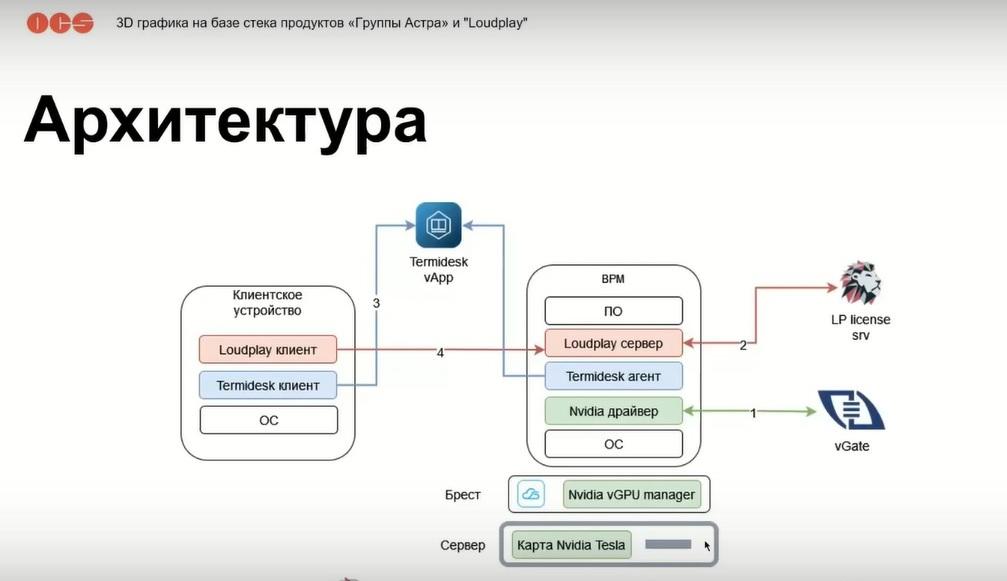
Let's start with the server - this is a physical device, inside which a card is installed, which must support BGPU technology, Nvidia in this case supports the Tesla series. On top of this harness, we install a hypervisor. As part of today's event, this is Brest. You can install software from Nvidia into it, which helps to divide the card into smaller profiles for issuing VDI machines. Virtual machines are installed on the entire bundle, which, in addition to the operating system and software, contain additional components that implement the entire stack for this technology.
So, what are these components? First of all, this is an NVIDIA driver, which allows you to see the card received from the hypervisor in the operating system and use it for various tasks, coding and decoding.
The next component is the termidesk agent, which allows you to manage the virtual machine, monitor its status and interact to perform administration tasks. And the Loudplay server, which allows you to connect various devices via various communication channels to receive images, control and forward peripherals to a virtual workplace. Here you can see the pointing arrows to go through the chronology of the entire process, what happens from the beginning of the launch to the moment the client connects.
In the first step, after the machine has started, the NVIDIA driver must unlock its capabilities so that all the instructions that Nvidia has laid down in its technology are available. For this, Forsight has released an excellent product that allows you to unlock these features. What is the difference from other solutions? The fact that this technology does not interfere with the Nvidia software inside the hypervisor, it is embedded at the level of the moment of obtaining a license, which guarantees the integrity of what Nvidia has laid down in its instructions. Well, accordingly, fewer glitches can be collected. In general, you can collect the same glitches that everyone in the world collects who uses Nvidia software.
Next, after we have unlocked the Nvidia driver, the Loudplay server starts, which also tries to get a Loudplay server license at the time of its start. There are two options here. The first is when the Loudplay server is a dedicated virtual machine that we specify inside the Loudplay server configuration file. And at the moment of trying to start or restart this server, it "goes" to the license server every time to pick up one connection for itself. Or the second option, when we issue a license file specifically for one virtual machine, that is, in this case, you don’t need to go anywhere, the machine itself logged in, checked the license and allowed this service to be launched. The Termidesk agent must inform the Termidesk dispatcher that it is alive and well so that users can connect to it. And after that, this virtual workplace is ready for use. Next, the client uses the Termidesk client to log in either to the connection dispatcher or through the gateway, authenticates and sees the resources available to him. After selecting a resource, the BGPU Termidesk client transfers the configuration and control of the Loudplay client. The client connects directly to the server, and we get our session.
Brest 3D
Important points that we have collected, many will encounter this when installing this technology on Brest.
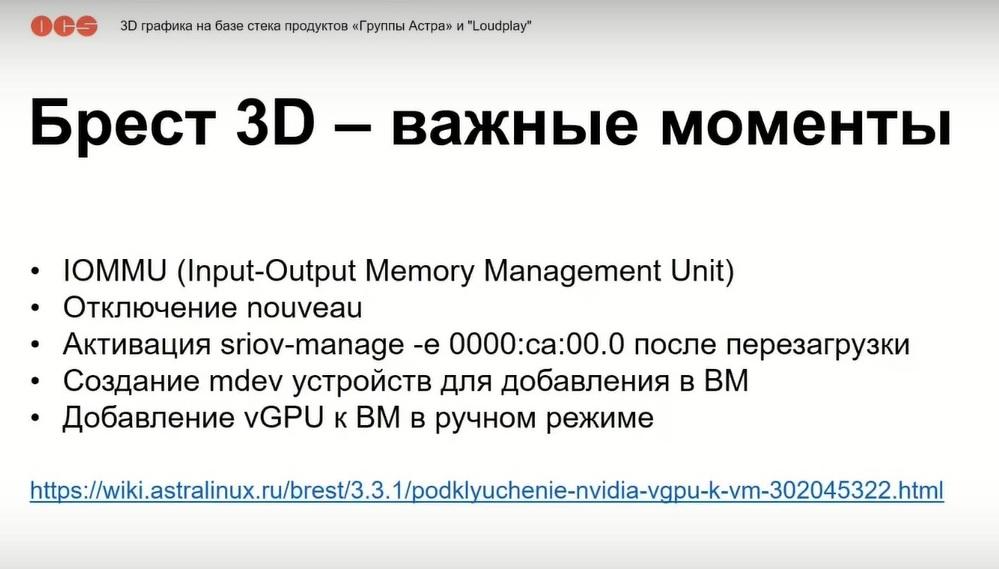
Accordingly, do not forget to activate the Input-Output Memory Management Unit technology, without it the card is not normally visible, and you can waste a lot of time thinking that our software was installed incorrectly. Therefore, we do this in the first place, it is done both in the BIOS and in the operating system.
The next important point is disabling nouveau GPU, which by default works in all versions of Linux. Accordingly, everyone who installs NVIDIA software faces this problem. Accordingly, this is the second important point that needs to be done immediately.
Activation of the technology Single Root Input-Output, in this case, this case depends on the card that you are using, in this case, we are using an A40 card on the stand, and this technology is mandatory for in order to activate the VGPU profile. The saddest thing is that if the companies Vmware and Citrix, they deliver out of the box the possibility of working with this technology, and we only need to install Nvidia drivers, restart our server, now we have everything, then on any QWNs now - this is manual work, in fact, which can be automated with the help of a self-written service. If this is not done, then each time after restarting any of the servers, you will have to go to it and manually activate this functionality, which affects the startup time of certain virtual machines.
Adding to vGPU to VM. In this case, it is done in XML form. Again, they promised to implement all this in the next release.
Termidesk 5.0
Until 5.0 LoudPlay was supported on a very old version of Termidesk. Accordingly, there are many features that Termidesk implemented, they were not used because it was impossible to build this bundle.
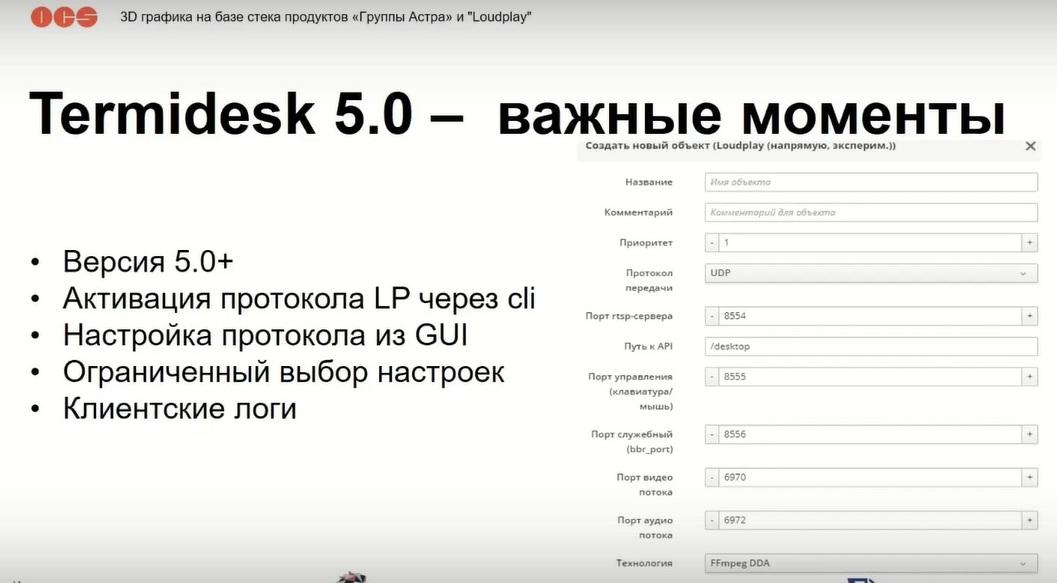
Therefore, at the moment, you must install the latest Termidesk 5.0, in which everything was returned to place, improved and provided, looking a little ahead, the ability to configure via driver. In order for LoudPlay to appear in the interface, you must first execute the commands that can be found on the "wiki" under the term Termidesk. It turns out LoudPlay is located in a special section that is not available by default. In order for it to start, you need to replace its configuration. There is nothing complicated there, four commands, but this is an additional step that cannot be forgotten.
Protocol settings were finally moved to the GUI, previously it was a Python script inside the broker, which had to be edited in order to be able to perform initial settings.
The following point follows from this. There is currently a limit on changing settings. In fact, we can change the transmission protocol, we can change the facts that are necessary. Well, in if we cross the screen, we can issue a graphics interception technology, that is, it will either be processor decoding, or it will be performed on the card.
Just in addition to these settings, there are many other important ones that we will now look at through the LoudPlay client itself. And all these necessary settings will definitely be included in the next release. This work is currently underway. And, I hope that everything will work out very well, because these are important points. These are client logs that are needed for "troubleshooting".
If earlier the process of launching the LoudPlay client was conditionally online, that is, after the user selected the BGPU icon, a conditional CMD-shnik was launched for him, and there was a stream of LoudPlay connection data, now this process is hidden from the eye, and all these settings have been moved to the clients, but the important point is that there is a log from the LoudPlay client and there is a log from the Termidesk client. Accordingly, to search for problems, you sometimes need to look there and there, which is a little more difficult for those who configure it. But this is a normal process, everything is logical.
LoadPlay
LoadPlay itself is very critical to time, like many services. Accordingly, if your LoadPlay server does not start for some reason, then first of all you need to check that it is synchronized in time with the guest operating system and the license server.
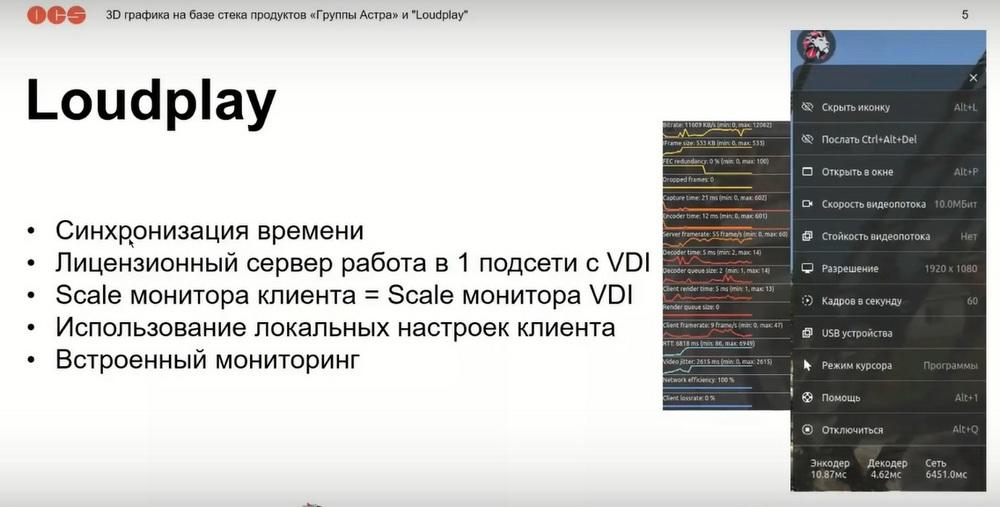
If there is a difference in time, it will not receive a license, and therefore will not start. The limitation of the LoadPlay server itself is that it can only work in a flat network, inside which the license server must be deployed. Some have security restrictions, so this part will also be fixed in the next release. At least this part is in the RoadMap. Therefore, at the moment we are working on maps. For those who need a separate server, separate subnets, apparently, will have to issue licenses for each virtual machine separately.
The third point, important for your picture to be displayed well without any distortions. You need to look at the Scale of the monitor that is used on the client and the Scale of the monitor that is used in VDI. There is a setting that increases the screen by 120%, 150%, and so on. This setting must be equal between VDI and the client.
From the strengths: LoudPlay currently allows you to configure client settings directly online. What's the plus? If we have any difficulties, especially from the point of view of administration, you can change these settings online and see the result. That is, whether we are going there or not, the quality of the picture is important to us or we need to interactively save a bad communication channel, we see all this online, we do not need any additional software from third-party manufacturers, it is all there by default.
Well, the most important thing that helps troubleshooting is built-in monitoring, again, as LoudPlay represents, which allows you to monitor the load on the communication channel, losses, delays, rendering.
Licensing
Now about licensing in brief. Brest has two editions. "Standard" and "Corporate". "Standard" allows you to run only Linux machines, "Corporate" - Linux and Windows machines. Licensed by sockets, that is if all your servers are dual-socket, then one license is one server. If there are four-socket or more, then one license allows you to run on dual-socket servers. Accordingly, for four-socket servers, you need two licenses. There are both perpetual options and those with an expiration date.
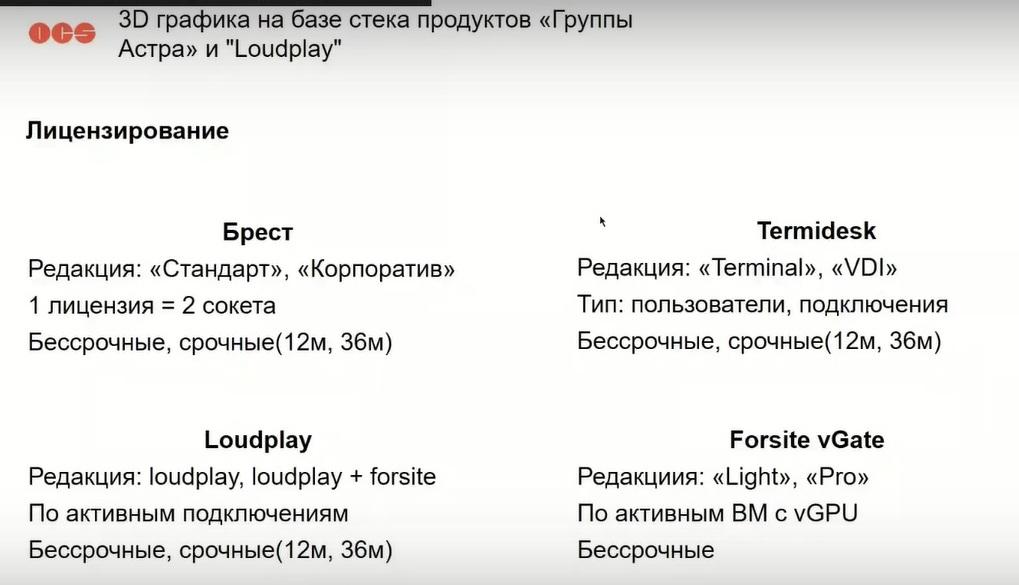
Termidesk has two main editions. This is a terminal and VDI. The terminal allows you to organize terminal farms and application delivery. VDI allows you to organize everything that includes the terminal, plus the VDI itself. There are perpetual and term options. LoudPlay is licensed only by active connections, there are options with perpetual and term, in fact, available in two variations. Either it is pure LoudPlay without vGPU activation. Or it's a bundle of LoudPlay plus VGator foresite, which essentially allows you to remove restrictions associated with NVIDIA. If you look deeper into this bundle, we will see two editions that VGate provides. This is either Light or Pro. Light allows you to simply activate the functionality and get basic consultations, Pro - allows you to get a full service for configuration, sizing, consultations, and so on.