In early August, some clients of Russian banks faced a similar situation. The websites of credit organizations stopped opening in some browsers, although the services themselves continued to work. The reason was the revocation of foreign SSL certificates from a number of Russian resources and their subsequent transition to certificates from the National Certification Authority of the Ministry of Digital Development, which are not trusted by all browsers by default.
Such cases have happened before. Moreover, the problem can affect not only banks, but also online stores, marketplaces, government platforms, and other online services. The good news is that access can usually be restored without disabling protection and complex manipulations.
How the browser verifies the certificate
Every website operating under the secure HTTPS protocol has a TLS certificate — it is also often called an SSL certificate. In essence, it is a digital identity: with its help, the browser verifies the authenticity of the site and establishes an encrypted connection.
The site's certificate is part of a chain of trust: it is signed by an intermediate certification authority, whose certificate is ultimately linked to the root. The root certificate must already be in the trusted store of the browser or operating system.
That is why a resource can remain fully functional and open for some users, but be blocked for others. The difference lies not in the bank's operation, but in the software and device settings.
Russian websites are increasingly switching to certificates from the National Certification Authority of the Ministry of Digital Development to be less dependent on the decisions of foreign certification authorities. However, some foreign browsers do not automatically recognize such certificates, so the user has to set up a convenient access method once.

How to make sure it's a certificate issue
Several signs usually indicate this reason:
- one browser blocks the official resource, while a browser with NCA support opens it without warning;
- instead of the page, a warning about an untrusted or unknown certificate appears;
- the bank's or service's mobile application continues to work;
- several Russian resources show a similar message at once;
- the bank or service announced the transition to NCA certificates.
Before changing settings, it is worth checking the address in the browser's address bar and finding the service's own message — for example, in the official application. If the domain is correct and the resource has indeed switched to a national certificate, access can be restored using one of the following methods.
Simple ways to regain access
If the cause of the error is an NCA certificate, access can be restored in several safe ways: use a compatible browser or application, install certificates on the device, or choose a system where their support is initially provided. Let's start with the fastest.
Quick and effective: change browser
The fastest way to open a website is in a browser from Russian developers — for example, in "Yandex Browser" or the "Yandex - with Alice AI" application. Support for National Certification Authority certificates is already built in, so you won't need to download and install files separately.
This option is convenient not only as an emergency measure. For those who regularly use Russian banks, stores, and government services, a compatible browser will help avoid reconfiguring for each new resource. Just install it from the official app store or the developer's website, and then open the desired address.
A small life hack: on Android, the page of the desired service can be brought to the home screen through the "Yandex - with Alice AI" application. The "Add shortcut" command will create a separate icon, and the site will launch with one click — almost like a regular application. Technically, it will open in a tab, but you won't have to search for the right page every time.
Install NCA certificates
This method is slightly more complicated, but it allows you not to give up your favorite and already familiar browser — Chrome, Safari, Edge, or another. It is enough to install NCA certificates into the system once, after which the verification of Russian websites will proceed as usual and will not require additional actions.
Certificates and instructions for different platforms are published on Gosuslugi. There are guides for Windows, macOS, Linux, Android, iPhone, and iPad. You need to install the entire set for the selected system, including the root and issuing certificates.
Before setting up, it is worth updating the browser and operating system, and also checking the date, time, and time zone on the device. After installing the certificates, the browser must be restarted. On iPhone and iPad, an additional step is required: in the certificate settings, you need to enable full trust for the installed root certificate. Otherwise, the profile will be added, but the system will not use it for secure web connections.
The setup is performed separately on each device. If one service is used from a laptop, smartphone, and tablet, the certificates must be installed on all three devices. On a work computer, installation may be blocked by the corporate security system — in this case, it is better to contact the system administrator.
With systemic installation of the root certificate, the device begins to trust certificates issued by the NCA. Therefore, the kit should only be downloaded from the official Gosuslugi page and strictly follow the instructions for your platform.
Use "Aurora"
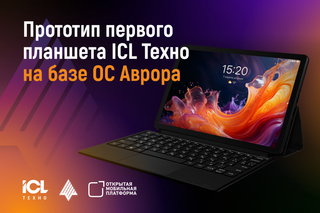
Another, more radical option, designed in particular for professional use, is to switch to a device running the Russian mobile OS "Aurora". The standard "Aurora Browser" supports secure connections using Russian cryptography, and when working together with CryptoPro CSP, it allows the use of an electronic signature directly on a mobile device.
In this case, compatibility with Russian security technologies is provided at the platform level. Therefore, "Aurora" may be of interest not only to organizations that are centrally switching to domestic software, but also to users who choose a Russian environment for daily and work communication. This is no longer a temporary solution to one browser problem, but a systemic approach to working with domestic digital services.
Instead of a website — an application
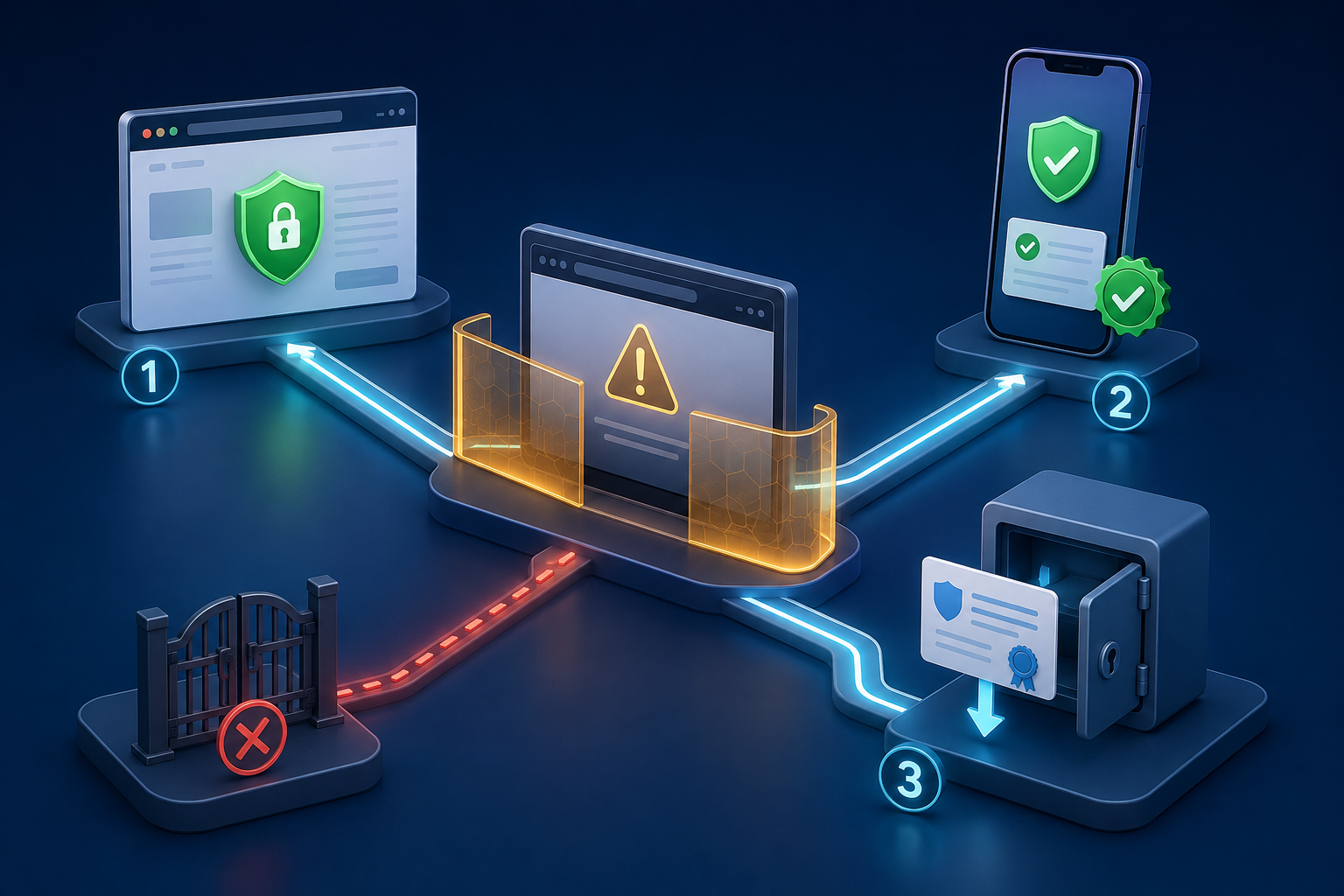
If the warning appears only in the browser, and access is needed right now, the simplest alternative route may be the official mobile application of the bank, store, or other service. In current versions, support for the necessary certificates is often already provided, so the application continues to work even when the browser encounters an unknown certificate.
Before logging in, it is worth checking if there is an available update: developers may have added the necessary support specifically in the fresh version. However, the application should only be downloaded from a source recommended by the bank or service itself — an official store, developer's website, or a catalog specified by them. Random APK files, links from messages, and third-party builds are especially inappropriate here: an attempt to quickly regain access should not end with installing an application of unknown origin.
CryptoPro will install the certificate itself
CryptoPro CSP is a software cryptoprovider for working with electronic signatures, Russian cryptographic algorithms, and secure connections. It is used for submitting electronic reports, working with state information systems, corporate portals, and other services where identity verification or data encryption is required.
Starting from version 5.0.13600, the program automatically adds the NCA root certificate to the trusted list when configuring the browser to work with TLS with GOST. Therefore, for those who already have CryptoPro installed and configured for electronic signatures or access to work systems, it may be enough to check the program version and make sure that the certificate has appeared in the system store.
In older versions of CryptoPro and other software, automatic configuration may not work. In this case, you should update the solution used or install the certificates manually according to the instructions on Gosuslugi.
Don't take unnecessary risks
A browser warning should not be taken as a mere formality, even if the reason seems obvious. You do not need to disable certificate verification, create a permanent exception, or forcibly go to the page. Until a secure connection is established, you cannot enter a password, SMS code, card details, or other sensitive data on the site.
A safe way to restore access depends on user habits. When a site is needed right now, it's easier to open it in "Yandex Browser" or the official application of the service itself. Those who do not want to give up their usual browser just need to install certificates from Gosuslugi once. And users and organizations for whom systemic compatibility with Russian security tools is important can consider devices on "Aurora" and CryptoPro solutions.
Whatever method is chosen, the principle is the same: do not bypass the browser warning and do not install files from random sources. It is better to restore access through a compatible browser, an official application, or certificates downloaded according to Gosuslugi instructions.